How to organize PDF pages on a phone
Mobile scans and downloaded documents often contain pages in the wrong order or include pages that should not be shared. Organizing the PDF before submission can prevent simple but costly mistakes.
Updated September 28, 2026 · FreePDF Tools
Review the page thumbnails first
Identify the cover, main pages, appendices and unwanted pages before changing anything. On a small screen, pause between groups so a long drag does not move a page farther than intended.
Reorder and remove deliberately
Move pages into the final sequence and delete only pages you know should not be included. Keep the original PDF until the final copy has been reviewed.
Check rotation and readability
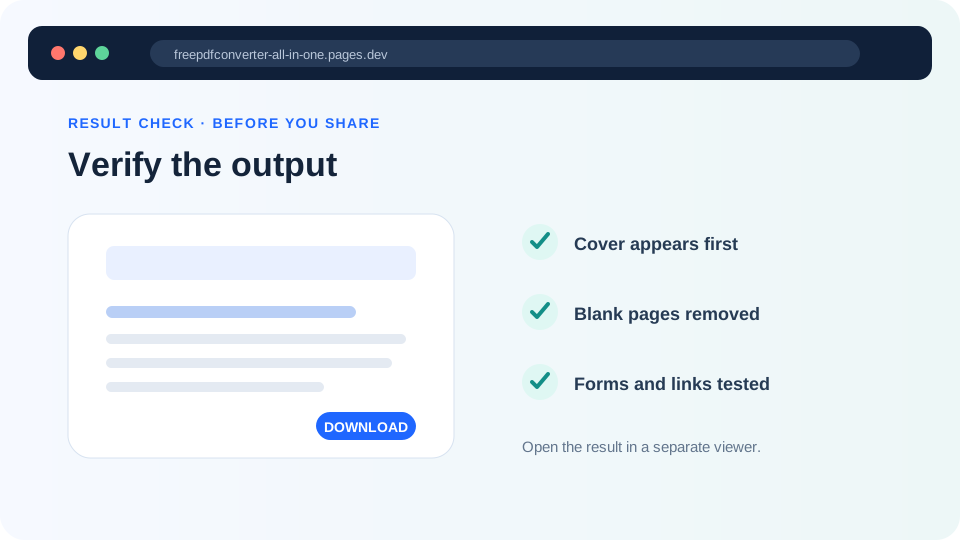
After reordering, inspect pages that arrived from phone scans. A correctly ordered document can still be hard to use if some pages are sideways, cropped or too dark.
Verify the final output
Open the saved PDF from the Files app or browser download and check the first page, last page, total count and important attachments before sending it.
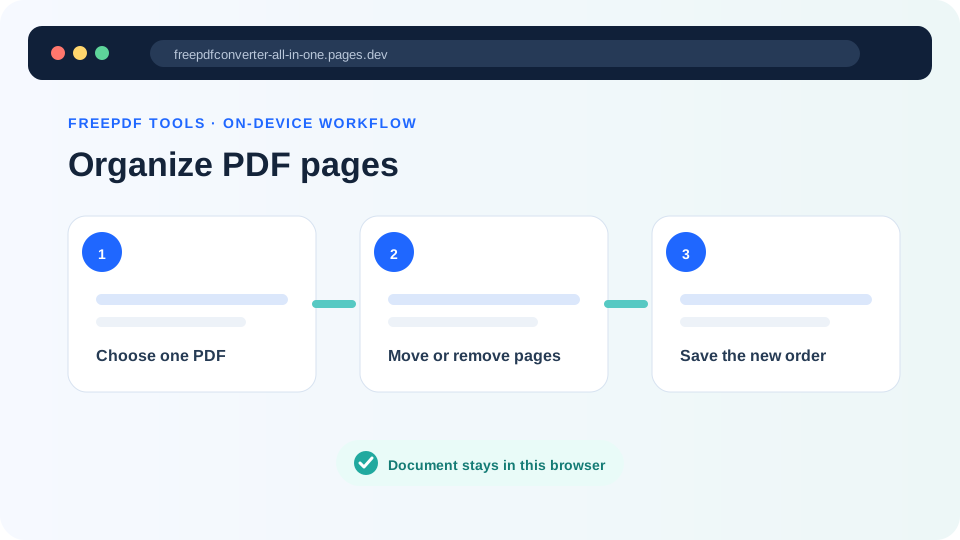
Organize the pages
Reorder or remove pages in the browser.