How to merge PDFs on a phone
Combining several PDFs on a phone is useful when reports, scans, receipts or supporting documents arrive as separate files. The goal is to combine them in a predictable order without losing the original files.
Updated September 28, 2026 · FreePDF Tools
Start with the files you actually need
Before opening the converter, identify the final document order. Rename files clearly when the filenames do not communicate sequence, and keep the original PDFs until the combined copy has been checked.
Use a browser-local merge workflow
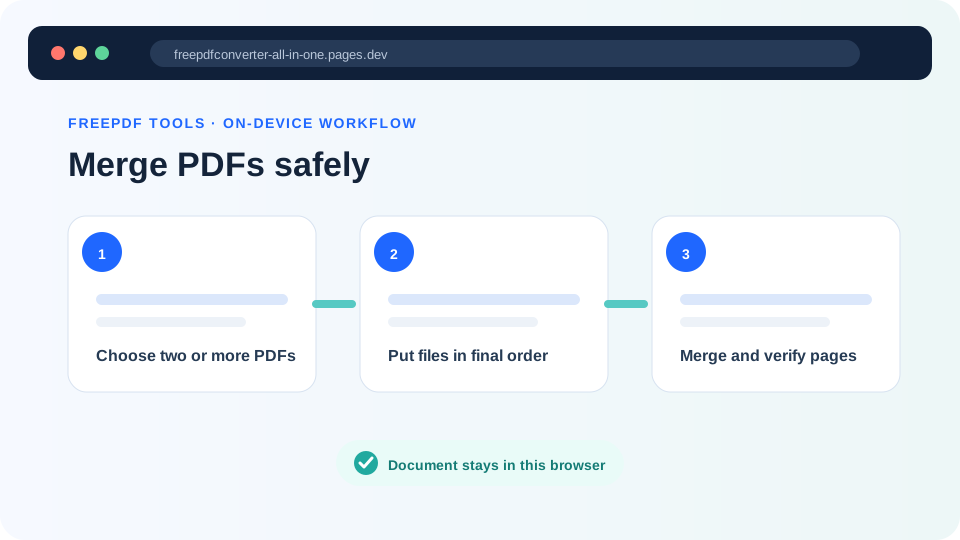
Open the Merge PDF tool, select the PDFs and arrange them in the intended order. The supported workflow runs in the browser, so the selected document bytes do not need to be uploaded to an application conversion server.
Watch mobile memory
Several camera scans or large image-heavy PDFs can use significant browser memory. If the phone becomes slow, merge smaller groups first and then combine the intermediate PDFs.
Review the result
Open the final PDF and check the cover page, attachments, page count, rotation and readability. A successful download is not the same thing as a verified document.
Ready to combine files?
Use the browser-local merge workflow.