How to resize and compress a signature for online forms
Signature uploads often have two separate requirements: image dimensions and maximum file size. A good workflow keeps the signature readable, removes unnecessary blank space and then compresses the result only as much as the form allows.
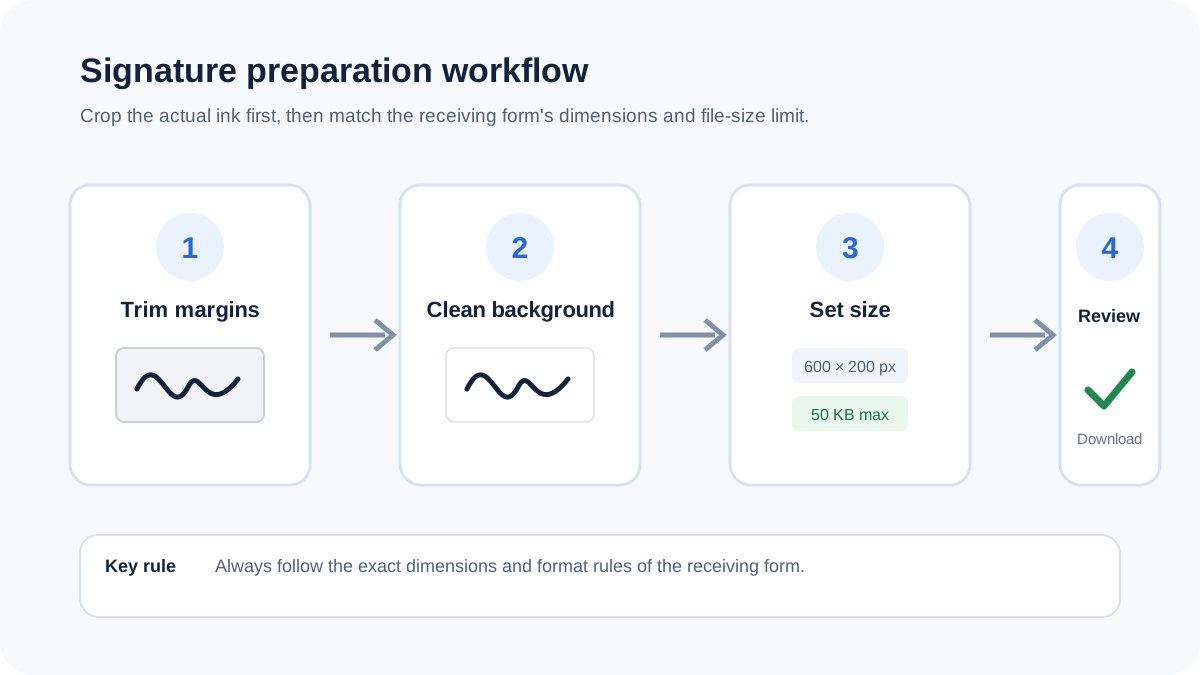
Start with the application's exact requirements
There is no universal signature size that applies to every website. Some forms specify pixels, some specify a maximum file size, and some specify both. Use the exact requirements shown by the application rather than relying on a generic preset.
A reliable preparation workflow
- Scan or photograph the signature clearly. Use good lighting and avoid motion blur.
- Crop unused margins. Large areas of white space waste dimensions and can make the actual signature appear too small.
- Set the required width and height. Preserve the application's aspect-ratio requirements where applicable.
- Choose the correct background. White is safest when the form expects a normal image. Transparency can be useful only when the receiving system supports it.
- Compress to the required maximum size. Use a format accepted by the form and avoid excessive quality loss.
Why background cleanup matters
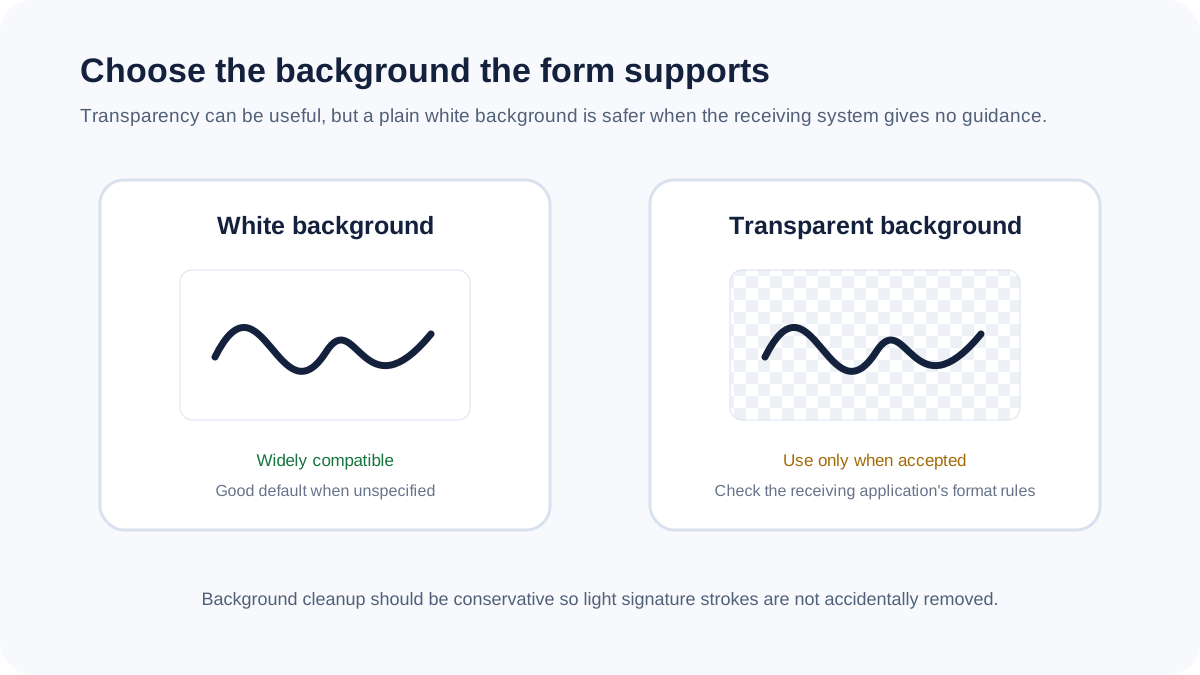
A photographed or scanned signature can contain shadows or slightly gray paper around the ink. A near-white background cleanup can reduce that surrounding noise, but aggressive thresholding can also damage light-colored strokes. Always inspect the result before submitting it.
10KB, 20KB, 50KB and 100KB targets
Small targets can be reached more easily when the image is tightly cropped and contains mostly simple strokes. A target size is best treated as a maximum goal. When an exact target cannot be reached without damaging the signature, the safest result is usually better than forcing the byte count lower.
JPG, PNG or WebP?
JPG is compact and widely accepted, but it is not ideal for transparency. PNG preserves transparency and sharp edges, which can be useful for signatures, although PNG can become comparatively large. WebP can be compact when the receiving application supports it. Follow the form's stated format rules.
Privacy
A signature is sensitive personal information. FreePDF Tools processes supported signature images locally in the browser, so the source file does not need to be uploaded to a conversion server.
Use the signature tool
Frequently asked questions
What signature size should I use?
Use the dimensions required by the specific form. There is no single size that applies to every application.
Can a signature be made transparent?
Yes, technically, when the output format and receiving application support transparency. A white background is generally safer when the form gives no transparency guidance.
Will resizing change my original signature?
No. The tool creates a separate output copy.