How to OCR a scanned PDF into Word
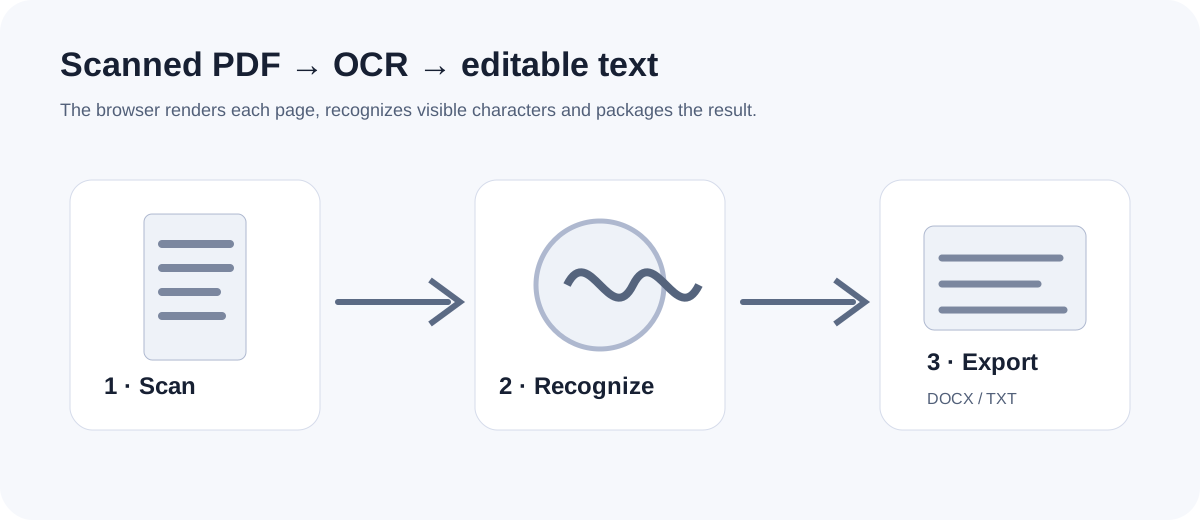
When a PDF is made from page images, ordinary PDF text extraction may return nothing. OCR adds a recognition step that turns visible letters into selectable text and gives you an editable starting point for Word.
Updated September 28, 2026 · Reviewed by FreePDF Tools
1. Check whether the PDF is scanned
Try selecting a sentence in the PDF viewer. If characters can be selected and copied, the document already has a text layer and the standard PDF to Word converter may be enough. If a page behaves like one large image and text cannot be selected, OCR is the appropriate next step.
2. OCR only the pages you need
Open the OCR PDF tool, choose the scanned PDF and set a page range. Browser OCR is CPU- and memory-intensive, so working in batches is safer for long documents, especially on mobile devices.
3. Render each PDF page
The browser first uses PDF.js to render each selected PDF page as an image. Rendering at a sensible resolution gives the OCR engine enough pixels to distinguish characters without creating an unnecessarily large canvas.
4. Recognize the visible text
The rendered image is passed to Tesseract.js in a Web Worker. The recognition engine returns text for that page; the application then repeats the process for the next page. The worker keeps heavy recognition work away from the main page thread.
5. Download Word or plain text
After recognition, you can copy the text, download a UTF-8 text file or download an editable DOCX. The Word file is a text-focused reconstruction rather than a pixel-perfect copy of the scanned page.
What affects OCR accuracy?
| Source condition | Likely effect | Practical fix |
|---|---|---|
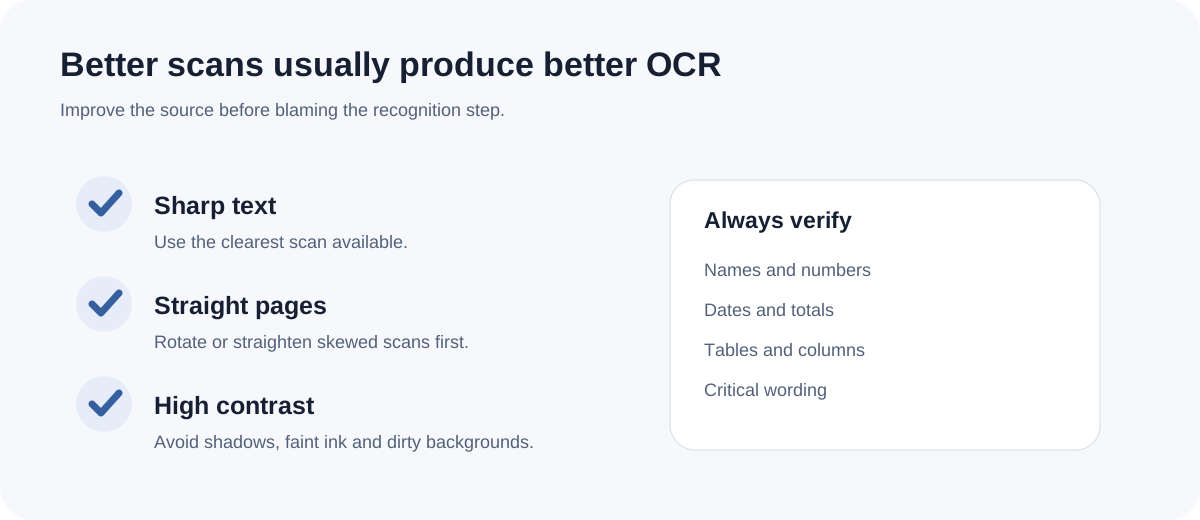
| Sharp, high-contrast text | Cleaner character recognition | Use the clearest scan available |
| Skewed or rotated pages | More recognition errors | Rotate or straighten pages first |
| Faint text or shadows | Characters can disappear | Use a brighter, better-quality scan |
| Complex tables and columns | Reading order can change | Review the DOCX and fix structure manually |
| Handwriting or unusual fonts | Recognition is less reliable | Proofread names, numbers and critical fields |
OCR vs. ordinary PDF text extraction
Text extraction reads characters that already exist in the PDF text layer. OCR interprets the pixels on the page. That makes OCR useful for scans, but it also introduces recognition uncertainty. A scan can contain a visual character that looks obvious to a person but ambiguous to the engine.
OCR and privacy
For sensitive documents, local browser OCR can avoid sending the source PDF to a remote conversion service. In FreePDF Tools, PDF rendering, Tesseract.js recognition and DOCX generation happen in the browser for this workflow.
Frequently asked questions
Can OCR turn a scanned PDF into Word?
Yes. OCR creates recognized text and the FreePDF Tools OCR workflow can package that text as an editable DOCX. The layout may need cleanup.
Is OCR free?
The FreePDF Tools OCR workflow is available without an account and runs in your browser.
Does OCR preserve the exact scan design?
No. The main goal is editable text. Images, tables, columns, forms and exact spacing may not match the original page.
Why should I review OCR output?
OCR can confuse similar characters and may change reading order in complex layouts. Review important content before relying on it.