Compress PDF for email? Safe ways to reduce PDF file size
When an email service rejects a PDF, the useful question is not always “how do I compress it?” Sometimes the safest and fastest fix is to send fewer pages, remove unnecessary content or create a smaller purpose-built document.
Updated August 31, 2026 · Reviewed by FreePDF Tools
Looking for a free PDF compressor online?
“Compress PDF online”, “reduce PDF size” and “make PDF smaller for email” are common searches, but they can describe different jobs. True PDF compression may downsample images or rewrite internal objects. FreePDF Tools does not currently pretend that page deletion, cropping or metadata cleanup is a full compression engine. This guide shows what those operations can genuinely reduce and when you should use a dedicated compressor instead.
First, check what actually makes the PDF large
PDF file size depends on what the document contains. A text-heavy report can remain relatively small even with many pages, while a short scan can be large because every page is effectively a high-resolution image. Embedded photographs, repeated graphics, fonts and attachments can also increase size.
If the document contains only the pages the recipient needs, true image or object compression may be the right next step. FreePDF Tools currently focuses on browser-local page operations rather than claiming a full PDF compression engine. The methods below help when the problem is unnecessary content or oversized page scope.
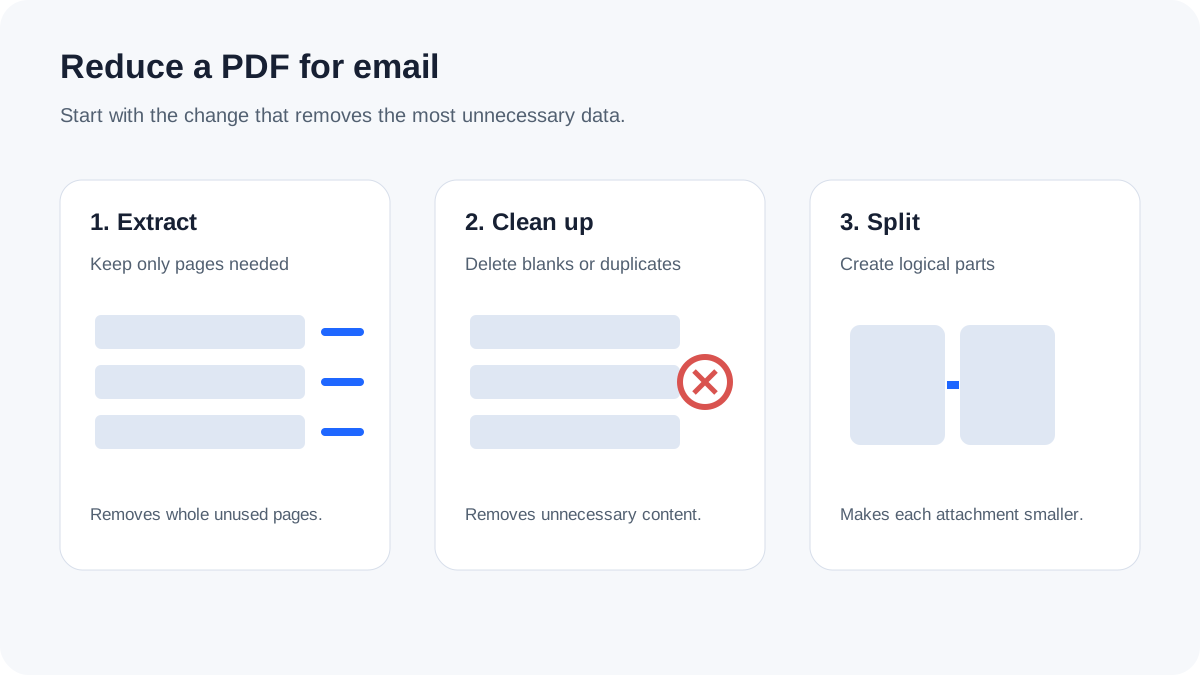
1. Extract only the pages the recipient needs
If a 100-page report is too large but the recipient needs pages 12–20, create a new PDF containing only that range. This is often the biggest reduction available because entire pages, images and embedded objects are removed from the file rather than recompressed.
Use Split PDF → Choose a page range, create the smaller document and open it once before sending.
2. Remove blank, duplicate or irrelevant pages
Scanned packets frequently include blank separator sheets, duplicate pages or material that is not required for the current email. Reordering and deleting those pages creates a cleaner document and can lower the total size at the same time.
Use Organize PDF → Keep the pages you need, put them in the correct order and download a new copy.
3. Split one large attachment into logical parts
When the complete document must be delivered but the email platform has an attachment limit, split the document into meaningful sections such as “Report Part 1” and “Appendices.” This does not reduce the combined number of bytes, but it can make each attachment fit the service limit.
4. Crop scanner borders only when they are genuinely unnecessary
Some scans have large black edges or excessive whitespace. Cropping changes the visible page box and can make the document cleaner. It should not be described as guaranteed compression, because cropping a PDF does not necessarily delete every underlying object outside the new page boundary.
Use Crop PDF → Keep a safe margin around signatures, page numbers and annotations, and remember that cropping is not redaction.
5. Rebuild image-only documents more carefully
If the PDF was created from phone photos or scans, the source images may be much larger than necessary. When you still have the original images, consider creating a fresh PDF from only the required images and a sensible page size. Avoid repeatedly converting PDF pages to images and back unless you understand the quality trade-off; that can turn sharp text into pixels and make later searching or copying harder.
Use JPG / PNG to PDF → when your actual source material is a set of images and you want one ordered document.
6. Do not confuse metadata removal with compression
Removing author, title and standard XMP metadata is useful for privacy, but those fields are usually tiny compared with scanned images. Metadata cleanup should be done because you want to remove document properties, not because you expect a dramatic file-size reduction.
Use Remove PDF Metadata → for privacy-focused cleanup.
7. If true compression is required, preserve the original
A real PDF compressor may downsample images, recompress image streams, remove unused objects or optimize internal structures. Those operations can reduce size substantially, but aggressive settings can make scans, diagrams and small text difficult to read. Keep the original file, compare several pages at normal zoom and verify signatures, forms and links when they matter.
For sensitive documents, also check whether the compression service uploads files to a remote server and what its retention policy says. See Are online PDF converters safe? and PDF converter without upload for a privacy checklist.
Quick decision table
| Problem | Best first step | What changes |
|---|---|---|
| Recipient needs only a few pages | Extract a page range | Removes all unneeded pages from the new file |
| Document contains blanks or duplicates | Delete unnecessary pages | Creates a cleaner, shorter PDF |
| Complete document is over the attachment limit | Split into logical parts | Reduces each attachment, not the combined total |
| Scan has huge visible borders | Crop carefully | Changes the visible page area; size savings are not guaranteed |
| High-resolution photos created the PDF | Rebuild from appropriately sized source images or use a trusted compressor | Can reduce image data, with possible quality trade-offs |
Before emailing the smaller PDF
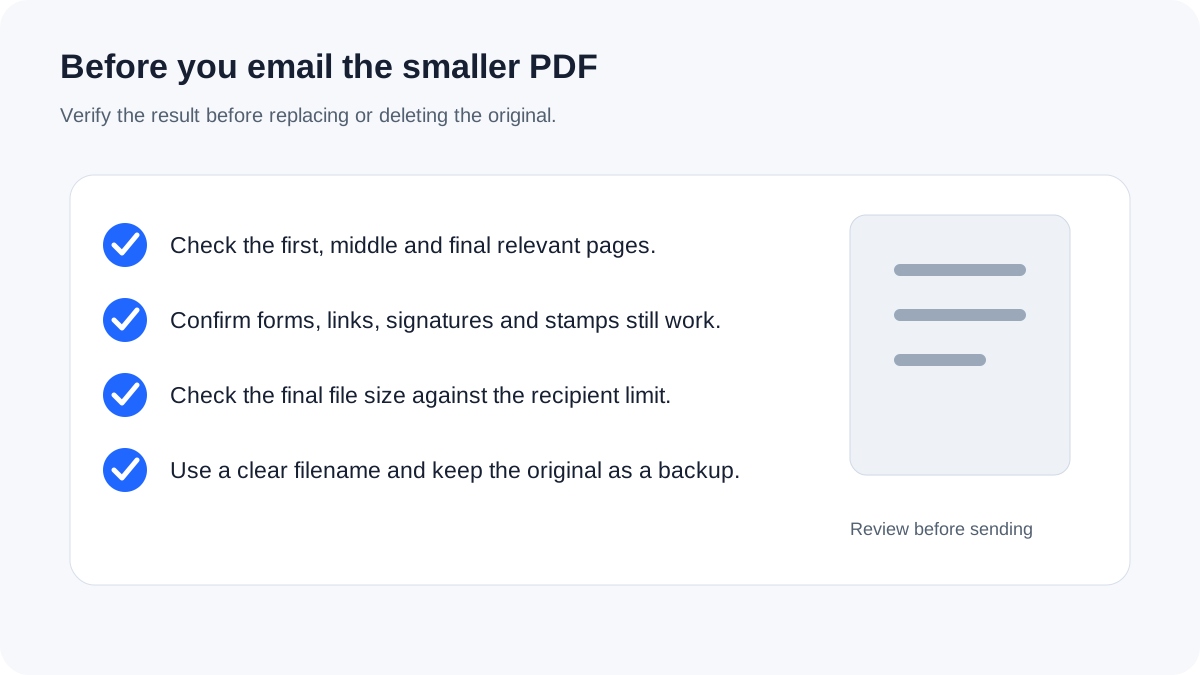
- Open the downloaded file and inspect the first, middle and last relevant pages.
- Confirm that signatures, stamps, forms and hyperlinks still work when they matter.
- Use a clear filename that explains the document and page range.
- Check the final file size against the recipient's or email provider's limit.
- Keep the original until the recipient confirms they can use the new copy.