PDF vs JPG vs PNG: which image format should you use?
JPG is usually the better choice for smaller photo-heavy images. PNG is usually better for crisp text, screenshots, forms, diagrams and line art. The right format depends on the PDF page and how the image will be used.
Updated August 29, 2026 · By FreePDF Tools · 8 minute read
PDF to JPG or PNG: the short answer
If you are asking “Should I convert my PDF to JPG or PNG?”, start with the content of the page:
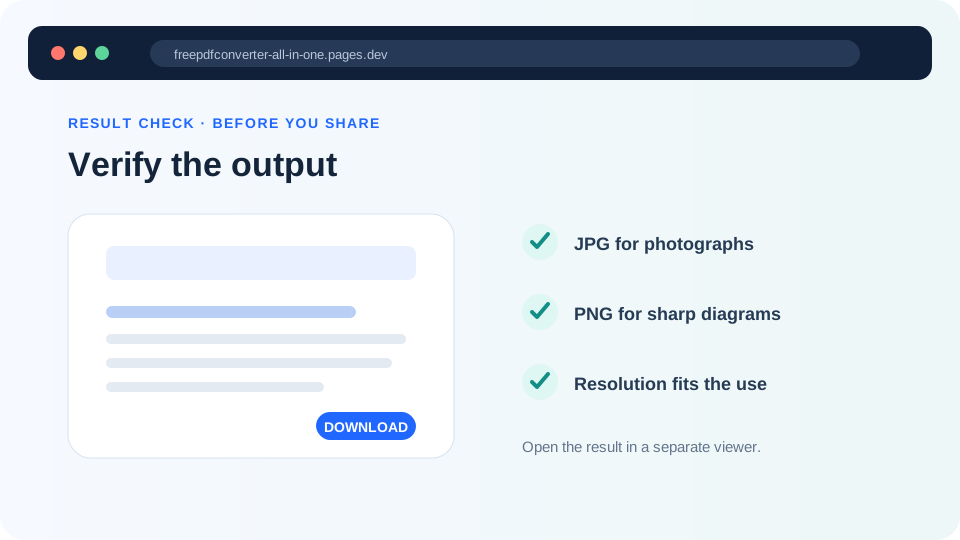
- Choose JPG for photographs, photo-heavy scans, brochures and previews when a smaller file is important.
- Choose PNG for screenshots, forms, tables, diagrams, line art and pages with small text where clean edges matter.
- Keep the PDF when you need searchable text, selectable text, clickable links, bookmarks, forms or scalable vector content.
Both JPG and PNG are raster image formats. Once a PDF page is converted to either format, the visible page is represented by pixels rather than the original PDF objects.
JPG vs PNG: complete comparison
| Feature | JPG | PNG |
|---|---|---|
| Compression | Lossy; reduces file size by discarding some image detail | Lossless; preserves the rendered pixel values |
| Typical size | Usually smaller for photographs and photo-heavy scans | Often larger for photographs; can be efficient for simple graphics and text |
| Text and thin lines | Can develop ringing or block-like artefacts around sharp edges at lower quality | Usually keeps sharp edges cleaner |
| Transparency | Does not support transparency | Supports transparency as an image format, although PDF pages normally render with an opaque background |
| Repeated saving | Repeated lossy encoding can accumulate artefacts | Lossless encoding avoids additional compression loss |
| Best general use | Photos, scans, previews and smaller downloads | Screenshots, forms, diagrams, text and line art |
File size is not a quality score. A smaller JPG may be the better result for a photograph, while a larger PNG may be the better result for a form that contains tiny characters. Judge the output at the actual display or print size rather than choosing only by file extension.
Which format should you use for different PDF pages?
- Scanned photograph: JPG is usually a good starting point because photographs contain gradual color changes that compress efficiently.
- Photo-heavy brochure: JPG is often preferable when the document will be shared online and file size matters.
- Application or tax form: PNG is usually safer for small text, boxes and thin lines.
- Software or website screenshot: PNG generally preserves interface edges, icons and small labels better.
- Engineering or technical drawing: PNG is a strong choice when fine lines and labels need to remain distinct.
- Chart or infographic: PNG is usually preferable when text and geometric edges are important.
- Email preview: JPG can be convenient when a compact attachment is the priority.
- Print-oriented output: choose adequate resolution first. PNG does not create detail that the source PDF does not contain.
Why JPG can make text look worse
JPG compression is designed around photographic imagery. It reduces information that is less noticeable to the eye, but sharp characters and one-pixel lines can make compression artefacts more visible. At aggressive compression settings, you may see halos, ringing, blockiness or softened edges around text.
PNG uses lossless compression, so it is generally a better fit for pages dominated by flat colors, text and hard edges. This does not mean PNG makes the source sharper: if the PDF contains a low-resolution scan, the PNG will faithfully preserve the pixels that were rendered from that scan.
Resolution matters as much as format
Resolution determines how many pixels are used to render each PDF page. Increasing it can preserve more visible detail, but it also increases processing time, browser memory use and output size. Higher resolution cannot recover detail that is absent from the source PDF.
| Goal | Practical starting point | Trade-off |
|---|---|---|
| Quick preview or simple sharing | Standard resolution | Fastest and smallest output |
| Readable documents and normal sharing | High resolution | Balanced clarity, memory and file size |
| Detailed zooming or print-oriented work | Very high resolution | More pixels but substantially higher memory and storage requirements |
For JPG, the quality setting controls how aggressively the rendered pixels are compressed. Higher quality normally means a larger file. It does not increase the resolution or recreate detail that the original PDF does not contain.
How to convert PDF pages to JPG or PNG
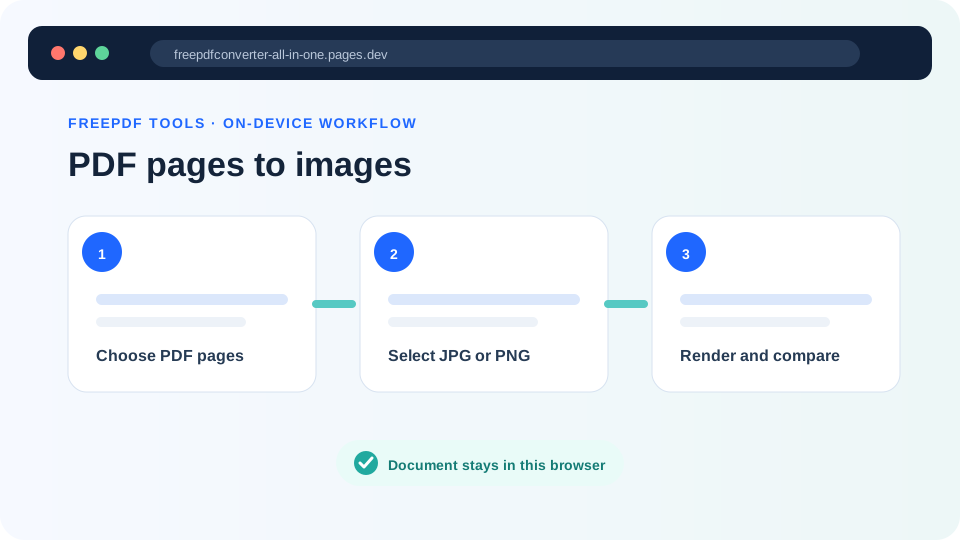
- Open PDF to JPG / PNG and select your PDF.
- Choose the first and last page you want to render.
- Choose JPG for compact photo-oriented output or PNG for crisp text and graphics.
- Select a resolution based on the intended screen, sharing or print use.
- If using JPG, choose a quality level that balances file size and visible detail.
- Start the conversion and keep the browser tab open while the pages render.
- Check a representative output before converting a large document.
- A single converted page downloads as an image; multiple pages are packaged together as a ZIP.
Convert PDF pages to JPG or PNG
Render selected PDF pages as images directly in your browser without uploading the source document.
Browser limits and troubleshooting
Rendering PDF pages to images uses browser memory because each page must be drawn before it can be exported. The FreePDF Tools converter limits one batch to 60 pages to keep large conversions manageable, but the practical limit can be lower on phones or low-memory devices, particularly at very high resolution.
| Problem | What to try |
|---|---|
| Text looks blurred | Try PNG or increase the resolution. If the source PDF is a low-resolution scan, the source itself may be the limiting factor. |
| JPG files are too large | Use Balanced quality or reduce the resolution. For simple graphics and text-heavy pages, compare the PNG result before deciding. |
| The browser slows down or stops | Convert a smaller page range, choose Standard resolution and close unused tabs. |
| The PDF will not open | It may be encrypted or invalid. Verify it in a trusted reader, then use Unlock PDF with the known password when authorized. |
| Several images download as a ZIP | This is expected for multi-page conversion and avoids a separate browser download prompt for every image. |
| Images look different from the PDF viewer | Check the source PDF and output at the same zoom or physical size. Different viewers can use different rendering and color-management behavior. |
Rendering a PDF page is not extracting its original images
The converter renders the complete visible PDF page—text, vectors, images and layout—onto a browser canvas. It does not simply extract image objects embedded inside the PDF. The resulting JPG or PNG therefore represents the entire page at the selected resolution.
If your goal is to extract original photographs or other embedded image files rather than create a picture of the whole page, a PDF-to-image page renderer is not the same operation.
JPG vs PNG: five-question decision checklist
- Is the page mostly photographic? Start with JPG.
- Does it contain small text, forms, tables or line art? Start with PNG.
- Is attachment size a major constraint? Compare JPG at a sensible quality level.
- Will the image be zoomed or printed? Increase the rendering resolution and inspect a representative page.
- Do you need searchable text or clickable links? Keep the PDF as the primary document.
JPG and PNG conversion: what to remember
The best format is determined by the content, not by a universal “higher quality” label. JPG usually wins when compact photographic output matters; PNG usually wins when sharp text and graphics matter. Resolution controls the number of pixels, while JPG quality controls compression. For documents that need PDF features such as search, links or forms, keep the original PDF even if you also create an image copy.